
Engineering data becomes work instructions.

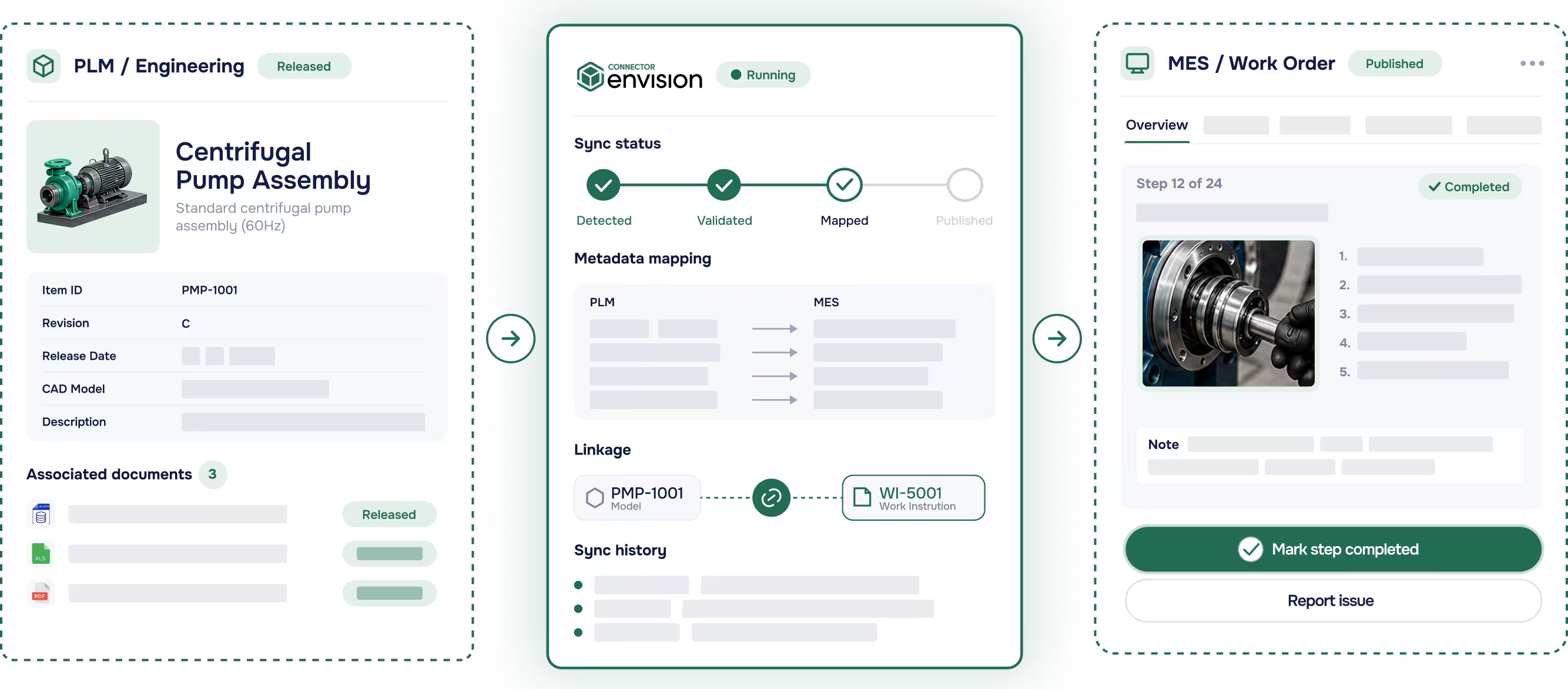
Envision Connector links Canvas Envision to your Product Lifecycle Management (PLM) and Manufacturing Execution System (MES). Manage work instructions inside your PLM, linked to the engineering data used to build them. Embed instructions in the production workflow your frontline workers already use. A digital thread from design through manufacturing and back.

Request a Demo
Arrow
Request a Demo
Request Pricing
Request Pricing
Three connected software panels showing Centrifugal Pump Assembly details, sync status, and MES work order step.
[ TRUSTED BY WORLD-CLASS MANUFACTURERS ]
Zipline
Marvin Engineering Company logo
Azenta Life Sciences
Otis
[ Why Envision Connector ]

Connect the digital thread to the people on both ends.

Organizations have invested heavily in engineering and production systems. PLM governs the design and MES orchestrates the line, but neither system reaches the worker with a usable instruction at the moment of work. Envision Connector closes both ends of that gap, pulling engineering data into the authoring environment and putting visual instructions into the production workflow.

If you can use PowerPoint, you can use Envision Creator.
[ How It Works ]

Connect to PLM, author the instruction, deliver to MES.

Step [01]

Connect to PLM

Link Canvas Envision to your PLM. Engineering source data flows into the authoring environment from the same governed system your engineering team already manages, including CAD models, bill of materials, and manufacturing process plans.

Step [02]

Author the instruction

Authors use the engineering content to build and update visual work instructions in Envision Creator. The work instruction is stored back in PLM as a governed object, part of the same revision-controlled product record as the engineering data it was built from.

Step [03]

Deliver to MES

Envision Operator delivers visual instructions to workers on the floor. Through MES integration, the right instruction appears at the right step in the production sequence, so when MES says it’s time to execute, Envision Operator is the surface the worker sees.

Request a Demo
Arrow
Request a Demo
Request Pricing
Request Pricing
[ Benefits ]

Faster engineering changes, current instructions, supported integrations.

Engineering changes reach the floor in minutes

PLM drives the impact analysis. The author pulls in the updated CAD, refines the affected callouts, exploded views, and step content with Evie’s help, then approves the release. The path from engineering change to shop floor compresses from weeks to minutes.

Instructions stay tied to engineering source data

Work instructions become governed objects inside your PLM, linked to the engineering data used to build them. They are part of the governed product record, not a side artifact in a shared drive.

Pre-built, supported, maintained

The pre-built Envision Connectors ship out of the box, fully supported. You don’t write code, and there’s nothing custom for you to maintain.

[ Features ]

Every integration capability your stack needs.

PLM connectors

Pre-built integrations to Aras, Autodesk Vault, Infor, SSI Shipbuilding, and SAIC ReadyOne. Engineering data flows into Envision Creator from your PLM, and work instructions become governed objects in the same system. Built on Envision Connect SDK, which you can also use to build your own PLM integrations.

MES connectors

Pre-built integrations to 42Q and Rockwell Plex. Visual instructions appear at the right step in your production workflow. Built on Envision Consume SDK, which you can also use to build your own MES integrations or embed Envision Operator into other applications.

CAD format support included with Envision Creator

SolidWorks, Creo/Pro-E, CATIA, NX, STEP, JT, and other major CAD formats are supported as part of Envision Creator, so no separate Envision Connector is required for CAD.

Custom integrations via Envision SDK

When a pre-built Connector doesn’t cover a specific PLM or MES, the Envision SDK enables custom integrations to any system that exposes an API. Connect SDK on the PLM side, Consume SDK on the MES side.

[ customer story ]
Carnaud Metalbox Engineering logo

CMbE runs governed work instructions generated automatically from their PLM.

CMbE runs Envision Connector with Aras Innovator and Manufacturing Process Planning. The manufacturing process plan in Aras drives automatic generation of governed work instructions in Envision Creator, flowing directly into the assembly line. Instead of recreating documentation, authors validate and approve content that’s already current with engineering. The result on the line is fewer errors, faster builds, and lower scrap.

See more success stories
Arrow
See more success stories
Days → Minutes

per drone configuration cascade
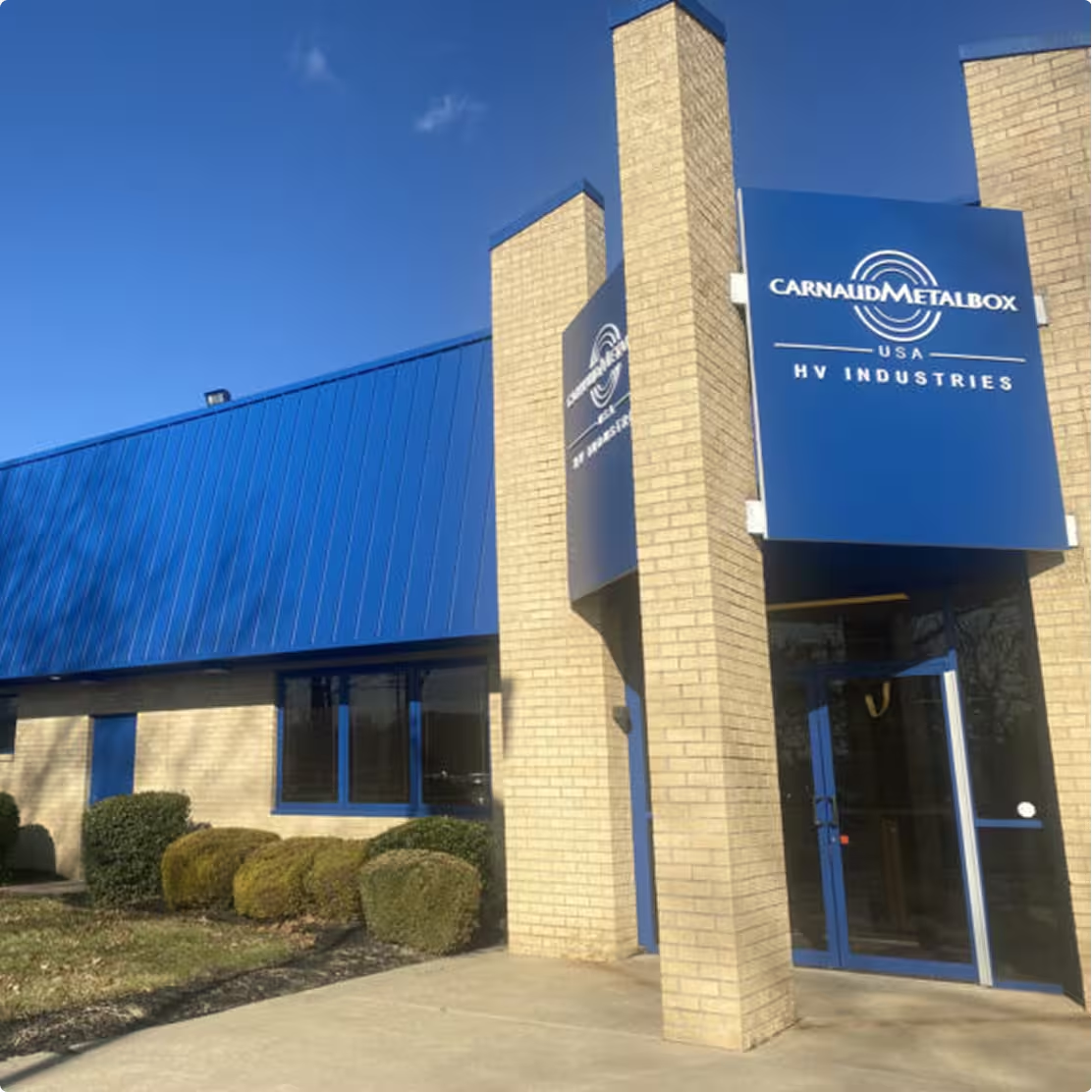
Brick building with blue metal roof and sign reading CarnaudMetalbox USA HV Industries.
[ FAQs ]

Frequently Asked Questions.

Still wondering? We're happy to talk through your specific assembly use case.

Contact Us
Contact Us

Which PLM systems have pre-built Envision Connectors?

Aras, Autodesk Vault, Infor, SSI Shipbuilding, and SAIC ReadyOne. Other PLM systems are supported via custom integrations built on the Envision Consume SDK.

Does Envision Connector support Aras integration?

Yes. Envision Connector is fully integrated with Aras. Engineering data, bill of materials, and manufacturing process plans flow from Aras Innovator into Envision Creator. Work instructions are stored back in Aras as governed objects, part of the same revision-controlled product record. Engineering changes flow through under controlled review and reach the floor in minutes. CMbE runs Aras and Envision Connector together to generate governed work instructions automatically.

Which MES systems have pre-built Envision Connectors?

42Q and Rockwell Plex. Other MES systems are supported via custom integrations built on the Envision Consume SDK.

How does the engineering change order flow work?

The PLM system performs impact analysis and identifies which work instructions are affected. The author pulls the updated CAD into Envision Creator and runs the update. Evie helps revise callouts, step text, exploded views, and animations. The author reviews and approves before release.

What CAD formats are supported?

SOLIDWORKS, Creo/Pro-E, CATIA, NX, Inventor, STEP, JT, and more than 30 additional formats. Supported as part of Envision Creator, with no separate Envision Connector required for CAD.

Can we build custom integrations?

Yes. The Envision Connector is built using the Envision SDK, so you can build your own integrations or extend the out-of-the-box ones using the same SDK. See the Envision SDK page for the developer surface.

Where are work instructions stored, in Envision or in PLM?

Both. The work instruction is authored and managed in the Envision platform, AND it is a governed object inside your PLM. That linkage is what makes engineering change impact analysis work and what keeps the work instruction part of the governed product record rather than a side artifact.

[ Explore further ]

The rest of the platform.

Canvas Operator SDK icon

Interactive on-device delivery to the people doing the work.

Canvas Envision Creator icon

Author the instructions Envision Operator delivers.

Canvas Envision Evie icon

Canvas Envision's AI for manufacturing work instructions.

Canvas Envision SDK icon

Pre-built PLM and MES integrations: Aras, Autodesk Vault, Infor, SSI Shipbuilding PLM, SAIC ReadyOne, 42Q, Rockwell Plex.

Connect engineering to execution.

Request a demo with your own PLM or MES. See how Envision Connector fits your stack.

Request a Demo
Arrow
Request a Demo
Request Pricing
Request Pricing